
Connect your first WhatsApp device
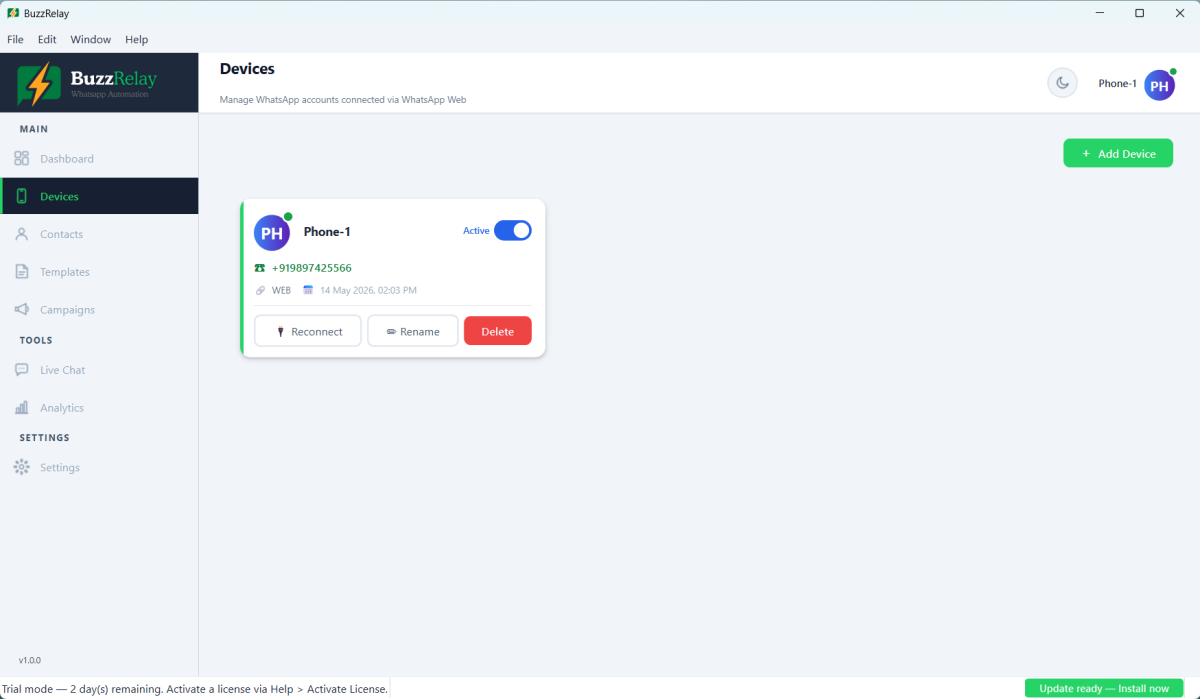
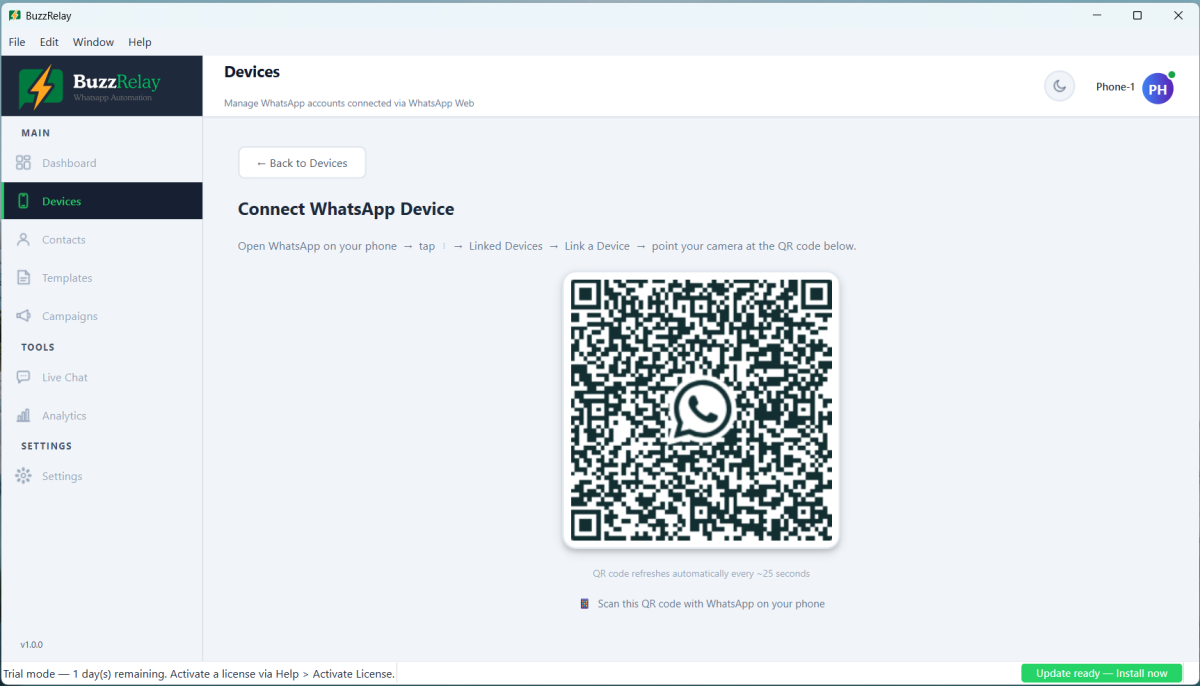
Open Devices, click Add Device, give it a name, then scan the QR code from your phone using WhatsApp → Linked Devices → Link a Device. The card turns green once connected. The session is saved on your computer, so restarting BuzzRelay does not require scanning again — sessions typically last weeks as long as the phone comes online occasionally.
What a "device" is
In BuzzRelay a device is one connected WhatsApp account. You can connect several, and each gets its own isolated browser session so accounts never share cookies or state. Every device needs its own number and its own phone.
Connecting
- Click Devices in the left sidebar.
- Click + Add Device.
- Give it a name you will recognise later — "Sales Number", "Support" — and click Connect. The name is for you; recipients never see it.
- A QR code appears.
- On your phone, open WhatsApp → Linked Devices → Link a Device.
- Point the phone at the QR code on screen.
- The device card appears with a green status indicator.
The QR code expires after a short time. If it goes stale before you scan, close the dialog and click Connect again for a fresh one.
Sessions persist
Once linked, the session is stored in a browser profile on your computer. Restart BuzzRelay, or your PC, and the device stays connected — no re-scanning.
Sessions typically last weeks, provided the paired phone comes online at least occasionally. What ends a session early:
- The phone stays offline for a long period.
- You unlink the device from WhatsApp on the phone.
- You log out from within BuzzRelay's Live Chat.
- WhatsApp expires the link on its own, which happens from time to time.
Device status
| Status | Meaning |
|---|---|
| Connected | Session is live; the device can send. |
| Disconnected | Session expired or was ended. Reconnect and scan again. |
| Error | Something went wrong opening the session — usually the browser could not start. |
A campaign cannot start on a device that is not connected. If a session drops mid-campaign, the campaign stops and the remaining recipients stay pending — see Device shows disconnected or the QR code won't scan.
Reconnecting
On the Devices page, click Reconnect on the device card and scan the new QR code. Reconnecting does not affect your contacts, templates or campaign history — only the browser session is replaced.
Connecting more numbers
Repeat the process for each number. Each needs its own phone with WhatsApp installed.
If you are adding numbers to increase sending volume, warm each new one up before using it in earnest — see How to warm up a new WhatsApp number — and note that a campaign sends from a single device, so spreading volume means one campaign per device: Run multiple devices and spread volume.
Use a number you can afford to lose. Automation breaches WhatsApp's terms, and numbers do occasionally get restricted. Connecting your only business number, the one printed on your invoices, is a risk worth weighing before you start.
Next step
With a device connected, you can send — Send your first campaign.
Frequently asked questions
How do I connect a WhatsApp number to BuzzRelay?
Open Devices, click Add Device, name it, then scan the QR code from your phone using WhatsApp → Linked Devices → Link a Device. The device card turns green when the connection succeeds.
Do I have to scan the QR code every time I open BuzzRelay?
No. The session is stored in a browser profile on your computer and survives restarts. Sessions typically last weeks as long as the paired phone comes online occasionally.
Why does my device keep showing as disconnected?
Usually the paired phone has been offline for a long period, the device was unlinked from WhatsApp on the phone, or WhatsApp expired the link. Click Reconnect on the device card and scan the new QR code.
Can I connect more than one WhatsApp number?
Yes. Each connected number is a separate device with its own isolated browser session, and each needs its own phone with WhatsApp installed.
Last updated: