
Import contacts from Excel
BuzzRelay imports .xlsx and .csv files. Only a Phone column is required, and it must include the country code. Name, Email, City and Company map to the matching variables, and any other column becomes a custom field whose heading is the variable name — a column called City is used as {{city}}. Format the Phone column as Text in Excel before saving, or Excel will strip the leading plus sign.
The column structure
BuzzRelay reads .xlsx and .csv files. Column headings are case-insensitive, and only Phone is required.
| Column | Required | Notes |
|---|---|---|
| Phone | Yes | Must include the country code, e.g. +91 98765 43210. Format the column as Text. |
| Name | Recommended | Full name. Used as {{name}}. |
| Optional | Used as {{email}}. | |
| City | Optional | Used as {{city}}. |
| Company | Optional | Used as {{company}}. |
| Anything else | Optional | Becomes a custom field. The heading is the variable name — a column Tier is used as {{tier}}. |
A ready-made sample file ships with your BuzzRelay download; starting from it is quicker than building the sheet from scratch.
Format the Phone column as Text first
This is the single most common cause of a failed import. With the column left as General or Number, Excel strips the leading +, drops leading zeros, and can convert long numbers to scientific notation such as 9.18765E+11. The damage happens when you save, before BuzzRelay ever sees the file.
In Excel: select the Phone column → right-click → Format Cells → Text. Do this before pasting the numbers in. If the numbers are already mangled, formatting the column afterwards will not bring the + back — re-paste them.
Running the import
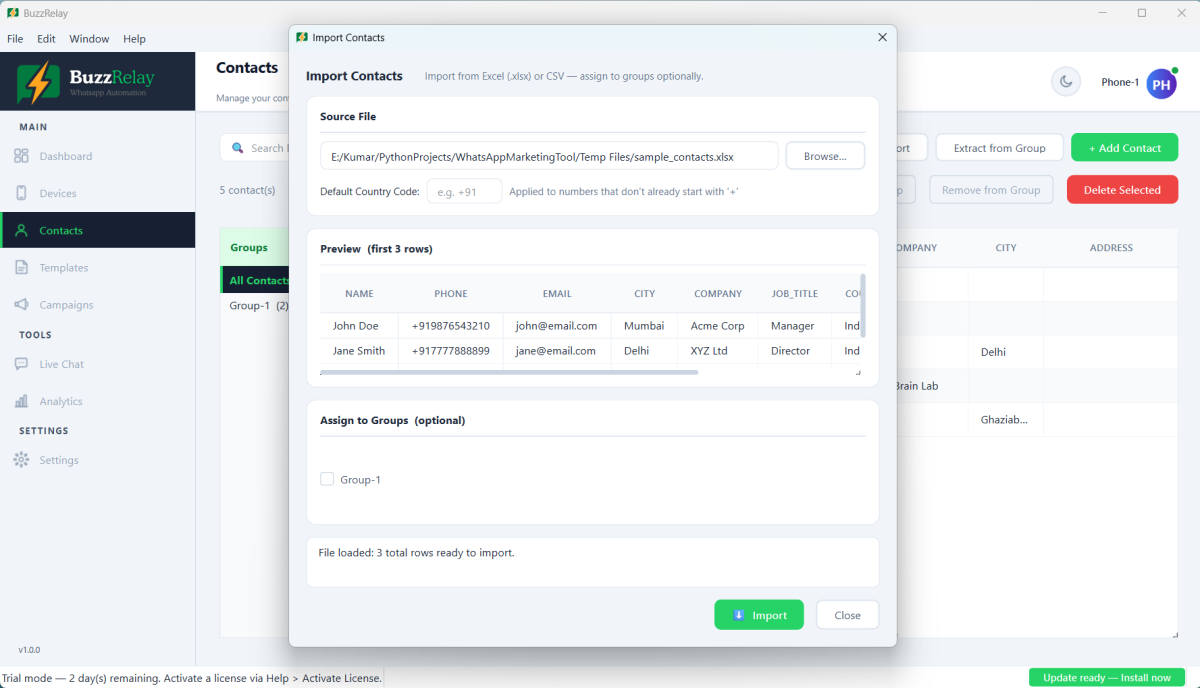
- Open Contacts and choose the import option.
- Select your
.xlsxor.csvfile. - Check the column mapping BuzzRelay has detected and correct anything it guessed wrong.
- Optionally assign the batch to a contact group as it imports.
- Import, then review the summary of accepted and rejected rows.
Country codes and the default region
The import dialog has its own Default Country Code box (for example +91), applied to any number that does not already start with +. Set it to match the batch you are importing. Numbers with no country code are otherwise interpreted using the default phone region in Settings, which ships as IN. That works for a single-country list. For a list spanning countries, one region setting cannot be right for all of them, so write every number in full international format:
| In your sheet | Result |
|---|---|
+919876543210 | Unambiguous — always correct |
9876543210 | Read using the default region |
09876543210 | Leading zero handled, still region-dependent |
98765 43210 | Spaces are fine, they are normalised |
9.18765E+11 | Broken by Excel — re-enter as Text |
Custom fields are the useful part
Any extra column becomes a variable you can use in messages. A sheet like this:
| Name | Phone | City | Product | Renewal |
|---|---|---|---|---|
| Priya | +919876543210 | Pune | Gold Plan | 12 March |
lets you write:
{Hi|Hello} {{name}}, your {{product}} renews on {{renewal}}.
Still the right plan for you in {{city}}?
Variables use double braces; the {Hi|Hello} group is spin text and uses single braces. See Personalise messages with variables.
Keep column headings short and single-word. Renewal is easier to use than Renewal Date (dd/mm), because the heading becomes the variable name.
When rows are rejected
| Cause | Fix |
|---|---|
| Phone column missing or misnamed | Heading must be recognisable as the phone column. |
| Number not valid for its country | Wrong digit count, or wrong default region. |
| Scientific notation | Re-enter with the column formatted as Text. |
| Blank phone | Rows with no number cannot be imported. |
| Landline | Valid as a number, but will never be on WhatsApp. |
Fix the source sheet and re-import rather than editing rows one by one — re-importing is safe, and matching numbers update in place instead of duplicating.
After importing, see How to check whether a number is on WhatsApp for what to do about numbers that are well-formed but may not have an account.
Frequently asked questions
What columns does BuzzRelay need to import contacts?
Only Phone is required, and it must include the country code. Name, Email, City and Company map to the matching variables, and any other column becomes a custom field whose heading is the variable name. Both .xlsx and .csv are supported and headings are case-insensitive.
Why did Excel break my phone numbers?
A phone column formatted as General or Number loses the leading plus sign and leading zeros, and long numbers can become scientific notation such as 9.18765E+11. Format the column as Text before pasting the numbers in; reformatting afterwards does not restore what was lost.
How do I add custom fields for personalisation?
Add extra columns to your spreadsheet. The heading becomes the variable name, so a column called Tier is used as {{tier}} in your message templates. Keep headings short and single-word.
Can I re-import the same file to update contacts?
Yes. Re-importing is the recommended way to fix problems: correct the source spreadsheet and import again rather than editing rows individually.
Last updated: