
AI content generation errors
An "invalid API key" error is nearly always a stray space copied with the key, or a key pasted into the wrong provider's field. A quota or rate-limit error comes from the provider, not BuzzRelay — check your usage dashboard on their site. AI generation uses your own API key and is billed to your account with that provider.
How AI works here
BuzzRelay does not include AI credits. You supply your own API key for OpenAI, Gemini or Claude — or a custom provider such as LM Studio, Ollama, OpenRouter or Groq — and generation is billed to your account with them. The relationship is between you and the provider; BuzzRelay just calls their API with your key.
That means most errors on this page are really provider errors, and the answer is usually on their dashboard rather than in BuzzRelay.
Start with Test Connection
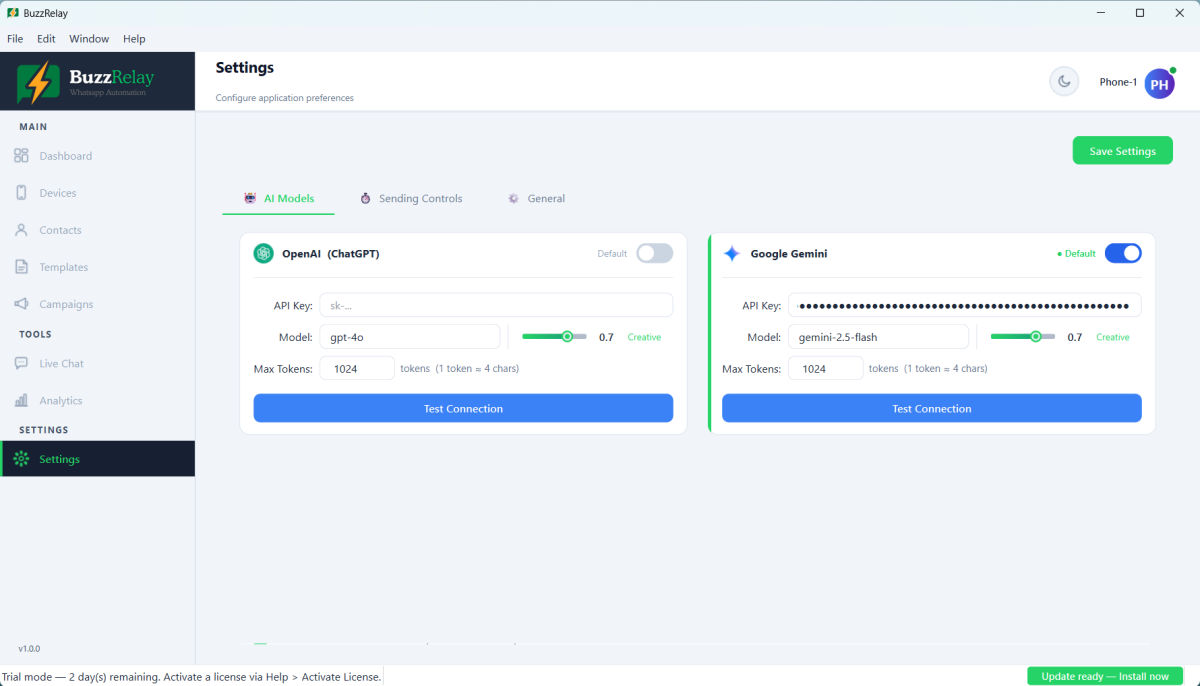
Each provider card in Settings → AI Models has a Test Connection button. Use it before anything else — it isolates whether the problem is your key, your network, or the prompt itself, without spending a generation.
"Invalid API key"
- Check for whitespace. Copying a key from a web page or email very often picks up a leading or trailing space. Clear the field and paste again carefully, or retype the last character.
- Check it is the whole key. Keys are long and easy to truncate when selecting.
- Check it is in the right field. An OpenAI key in the Gemini field fails. Each provider has its own field.
- Check the key still exists. Keys can be revoked or rotated in the provider's console.
- Check the account is active. Some providers require billing details before any key works.
Keys have recognisable shapes. If yours does not look like the examples in your provider's documentation, you may have copied an organisation ID or a project ID instead.
"Quota exceeded" or "Rate limit"
This comes from the provider and means one of:
| Message | Meaning | Fix |
|---|---|---|
| Quota exceeded / insufficient balance | You are out of credit | Add funds or upgrade on the provider's site |
| Rate limit exceeded | Too many requests too quickly | Wait a moment and retry |
| Free tier exhausted | Trial credit used up | Add billing details |
Check usage on your provider's dashboard — for example the OpenAI or Google AI Studio console. BuzzRelay cannot see your balance and cannot raise your limit.
"Model not found" or model errors
The selected model is not available to your account. Model names change as providers deprecate and release them, and some models require a paid tier or specific access.
Pick a different model in Settings, and check your provider's current model list. A model that worked last year may have been retired. Each provider card also has its own temperature and max-tokens values, so a very low max-tokens setting can truncate output that otherwise looks like a failure.
Connection failures and timeouts
- Firewall or antivirus blocking the outbound HTTPS call — see Antivirus or SmartScreen is blocking BuzzRelay.
- The provider is down. Check their status page.
- Corporate proxy intercepting the connection.
- Long prompts time out. Ask for something shorter.
Custom providers
Local providers such as LM Studio and Ollama add their own failure modes:
| Symptom | Cause |
|---|---|
| Connection refused | The local server is not running |
| 404 on the endpoint | Base URL wrong — check whether it needs a /v1 suffix |
| Model not found | The model is not pulled or loaded locally |
| Very slow responses | Normal for a large local model on modest hardware |
Confirm the local server responds in a browser before configuring it in BuzzRelay — that isolates whether the problem is BuzzRelay or the server.
Generation works but the output is poor
Not an error, but worth saying: AI output is a first draft. Always read it before sending, and check it for the things that get numbers reported — no sender identity, three calls to action, an over-enthusiastic tone.
Check the braces in generated text. A model asked to personalise a message will often produce {name} or [name]. BuzzRelay needs double braces — {{name}} — and a single-brace token sends literally. See Personalise messages with variables.
Privacy note
When you use AI generation, your prompt goes to the provider you configured. If your prompt includes customer details, those details leave your machine and are subject to that provider's terms. Local providers such as Ollama keep everything on your computer.
Frequently asked questions
Why does BuzzRelay say my API key is invalid?
Most often a leading or trailing space was copied with the key, the key was truncated, or it was pasted into a different provider's field. Also check the key has not been revoked and that your provider account has billing set up if they require it.
Does BuzzRelay include AI credits?
No. You supply your own API key for OpenAI, Gemini, Claude or a custom provider, and generation is billed to your account with them. BuzzRelay cannot see your balance or raise your limits.
What do I do about a quota or rate limit error?
It comes from the AI provider, not BuzzRelay. Check your usage dashboard on their site — a rate limit clears after a short wait, while an exhausted quota needs funds added or a plan upgrade.
Do my customer details go to the AI provider?
Whatever is in your prompt is sent to the provider you configured, so avoid pasting customer details unless you are comfortable with their terms. Local providers such as Ollama or LM Studio keep everything on your own computer.
Last updated: